System PiP and in-app minimize for Alaznah video and voice calls — Android, iOS, and what the host app must configure.
Picture in Picture
When a call is connected, @alaznah/calling can keep media on screen while the user leaves the full-screen call UI.
This is not the same as force-killing the app. PiP and the in-app bubble keep a live process. Swiping the app away from recents (true kill) still stops WebRTC media — see Background Calling.
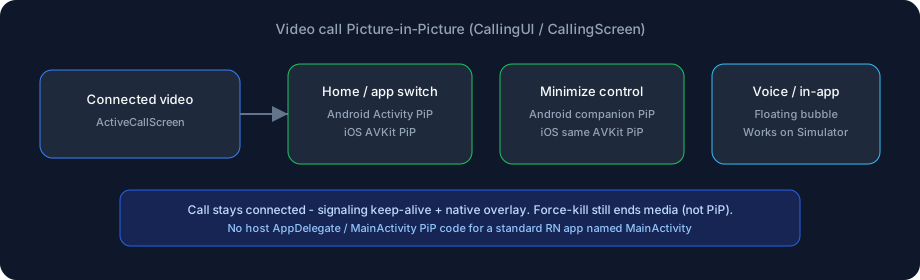
What ships in the SDK
Mount CallingUI or CallingScreen (or ActiveCallScreen from @alaznah/calling/ui). You do not write your own AVPictureInPictureController or Android enterPictureInPictureMode for a standard React Native app.
| Surface | When it appears | Voice | Video |
|---|---|---|---|
| System PiP (OS floating window) | Home / app switch, or the Minimize control on video | No | Yes |
In-app bubble (MinimizedCallBubble) | Minimize while staying inside the app | Yes | Fallback / Simulator |
Remote camera off still shows an avatar in the PiP window (Android TextureView overlay + iOS AVKit fallback), driven by remoteVideoEnabled and optional participants[].avatarUrl.
Android
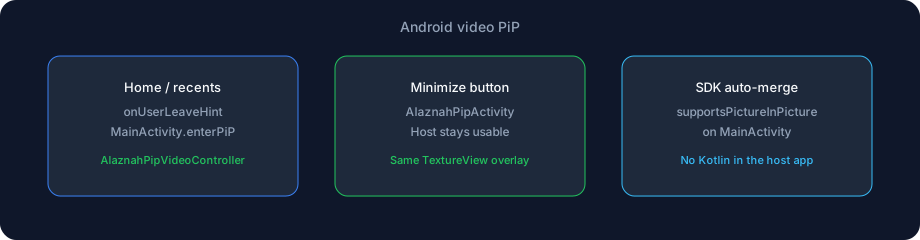
Two native paths share one overlay (AlaznahPipVideoController):
| User action | What runs |
|---|---|
| Home / recents (leave the app) | Host MainActivity enters system PiP via onUserLeaveHint |
| Minimize on the call screen | Dedicated AlaznahPipActivity so the host Activity stays usable |
| Tap the PiP window | Call UI restores; overlay is released |
Host Kotlin is not required when the launcher Activity is ${applicationId}.MainActivity. The library:
- Merges
android:supportsPictureInPicture="true"onto that Activity - Registers
AlaznahPipActivity - Hooks leave/resume through React Native
ActivityEventListener(AlaznahCallingHostHooks) - Starts
ActiveCallKeepAliveServiceso signaling heartbeats survive PiP / background
Custom launcher Activity name
If your main Activity is not MainActivity, add PiP flags yourself:
<activity
  android:name=".YourMainActivity"
  android:supportsPictureInPicture="true"
  android:resizeableActivity="true"
  android:configChanges="keyboard|keyboardHidden|orientation|screenLayout|screenSize|smallestScreenSize|uiMode" />
Do not override onUserLeaveHint to call enterPictureInPictureMode — the SDK already does that.
Android versions
System PiP needs API 26 (Android 8.0+). minSdk for the SDK is 24; older devices keep the in-app bubble only.
iOS
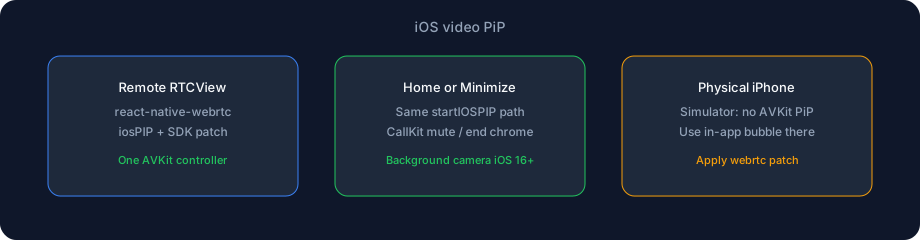
One AVKit controller is attached to the remote RTCView inside the call Modal (iosPIP on react-native-webrtc). Home and Minimize use that same path.
| Piece | Role |
|---|---|
AlaznahCallingPip | Reports PiP start/stop to JS (AlaznahCallingPipModeChanged) |
enableBackgroundCamera | Camera capture during PiP / background (iOS 16+) |
reportOutgoingCall / reportOngoingCall / reportCallConnected | CallKit session so PiP chrome can mute / end |
| WebRTC patch | Remote-only composition, camera-off placeholder, safe teardown |
No AppDelegate PiP code. Do not add a second AVPictureInPictureController in the host app.
Required host config (iOS)
- Background Modes → Audio (
audioinUIBackgroundModes) — required for video PiP while backgrounded - Background Modes → Voice over IP (
voip) — kill/background incoming, not PiP itself NSCameraUsageDescription+NSMicrophoneUsageDescription- Apply the
react-native-webrtcpatch shipped with the SDK (below) - Test on a physical iPhone (iOS 15+)
WebRTC patch (required for iOS PiP)
Stock react-native-webrtc PiP is not enough. The SDK ships the patch under node_modules/@alaznah/calling/patches/.
npm i -D patch-packageHost package.json:
{
  "scripts": {
    "postinstall": "patch-package --patch-dir node_modules/@alaznah/calling/patches"
  }
}
Reinstall, then pod install and rebuild iOS. Do not copy patch files into your app — the SDK folder is the source of truth. The basic-call example already sets this postinstall.
Full native checklist: Native Modules.
Simulator
iOS Simulator does not support AVKit Picture-in-Picture. In-app minimize bubble still works. Validate system PiP on a device.
What you do in JavaScript
With CallingUI / CallingScreen, nothing extra. PiP is armed while a video call is connected.
If you build a custom active-call layout and skip ActiveCallScreen, you must either:
- Render
ActiveCallScreenfrom@alaznah/calling/ui, or - Reproduce remote
RTCViewmounting + the SDK’s PiP lifecycle (not recommended)
CallingUI hides the JS Modal while Android system PiP is active so the native overlay is not covered by a black Dialog.
Keep-alive vs kill
| Situation | Call media |
|---|---|
| Home / PiP / in-app bubble | Stays connected (process alive) |
| Android ongoing-call notification (FGS) | Helps the process survive background |
| User force-stops / swipes the app away | Media stops immediately; peer is ended after reconnect grace |
Incoming calls when the app is already killed use push + CallKit / full-screen UI — Background Calling — not PiP.
Test checklist
| Step | Expected |
|---|---|
| Connected video on Android device → Home | System PiP with remote video (or avatar if camera off) |
| Android Minimize control | Companion PiP; returning to the app does not duplicate video |
| Connected video on physical iPhone → Home | AVKit PiP |
| iOS Simulator → Home | No AVKit PiP; bubble still works |
| Voice call Minimize | In-app bubble; tap restores full UI |
| End from PiP / CallKit | Call ends on both sides |
Troubleshooting
| Symptom | Fix |
|---|---|
| Android PiP never starts | Rebuild after install. Do not copy supportsPictureInPicture / resizeableActivity onto host MainActivity — the SDK merges PiP. Custom Activity name only: add flags yourself — Troubleshooting |
| iOS PiP never starts on Simulator | Expected — use a physical iPhone |
| iOS PiP never starts on device | Audio background mode + webrtc patch + native rebuild |
| Black Android Home PiP | Use CallingUI (it hides the Modal). Do not stack your own full-screen Modal over the call |
| Duplicate / fighting video surfaces | Do not add a second PiP controller or extra RTCView for the same remote track |
| Audio dies in PiP | Keep-alive FGS / iOS audio background mode — Native Modules |
Related
- Native Modules — autolinked packages vs host plist / manifest / patch
- Permissions — Background Modes and Android merge table
- Video Calls
- Call UI
- Background Calling — ring when killed (different feature)